 waply
waplyDocs
Calls only: set Waply as the Call primary in Conversation Routing
·
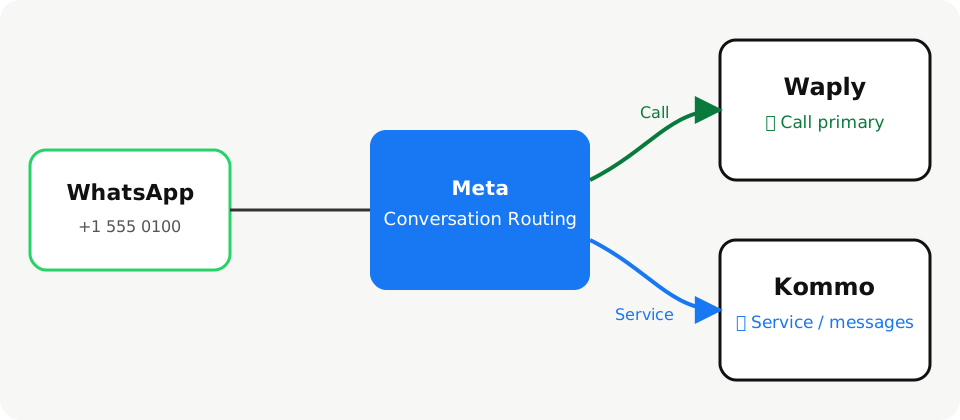
In “Calls only” mode, Waply handles only the WhatsApp calls on your number, and messages stay in the integration you already use (for example, Kommo's native WhatsApp). In Meta Business Suite → Conversation routing, assign “Calls with customers” to Waply (shown as “Efece systems”) and messages to your current integration.
Two steps: connect the number in Waply with “Calls only”, then assign calls to Waply in Meta.
Available for dedicated WhatsApp Cloud API numbers.
What “Calls only” mode is
When a number is shared by several integrations, Meta's Conversation Routing decides who gets each message type and the calls.
- Waply places and receives calls and logs them on the Kommo lead.
- Waply creates no chat channel and doesn't touch messages.
- Your messaging integration (e.g. Kommo's native WhatsApp) keeps the chats.
Before you begin
- A dedicated Cloud API number. Coexistence isn't supported (Meta doesn't enable calling there).
- Admin access to the WhatsApp account in Meta Business Suite.
- Waply installed in Kommo.
- Your messaging integration already connected to the same number.
Number on coexistence? Use “Full” mode or move to a dedicated number.
Step 1: connect the number in Waply with “Calls only”
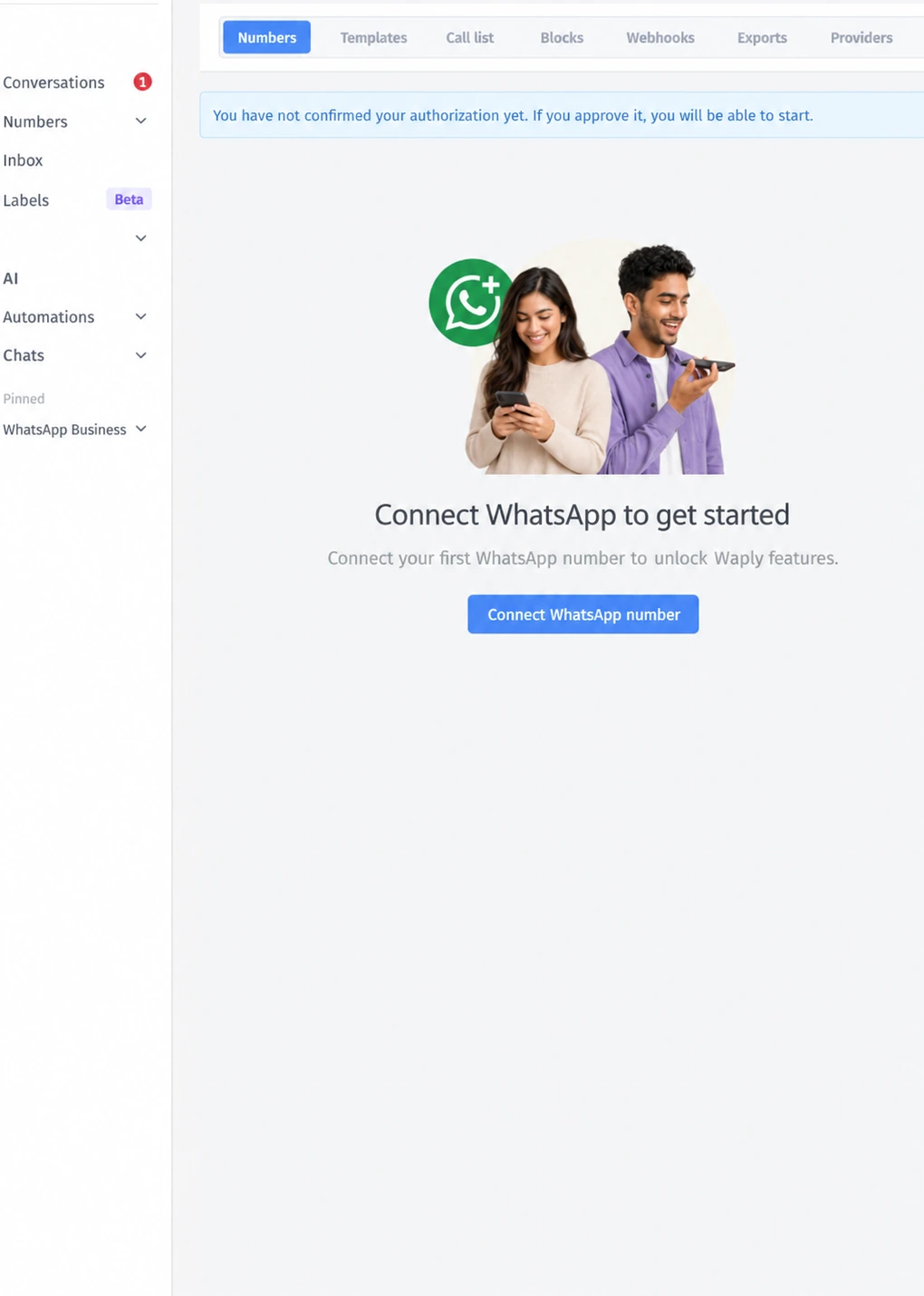
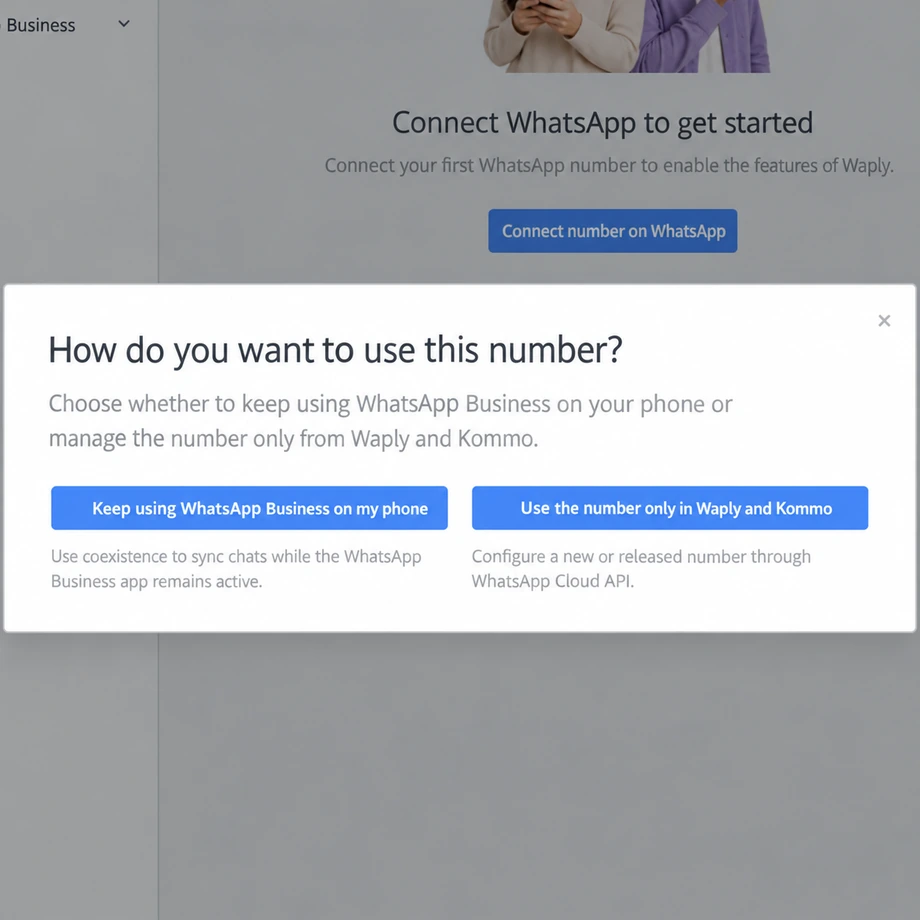
Follow the screenshots:
- In Kommo, open Waply → Numbers → “Connect WhatsApp number”.
- Choose to use the number only in Waply and Kommo (Cloud API).
- In the Meta window, pick your portfolio, WhatsApp account and number.
- When Waply asks, choose “Calls only”.
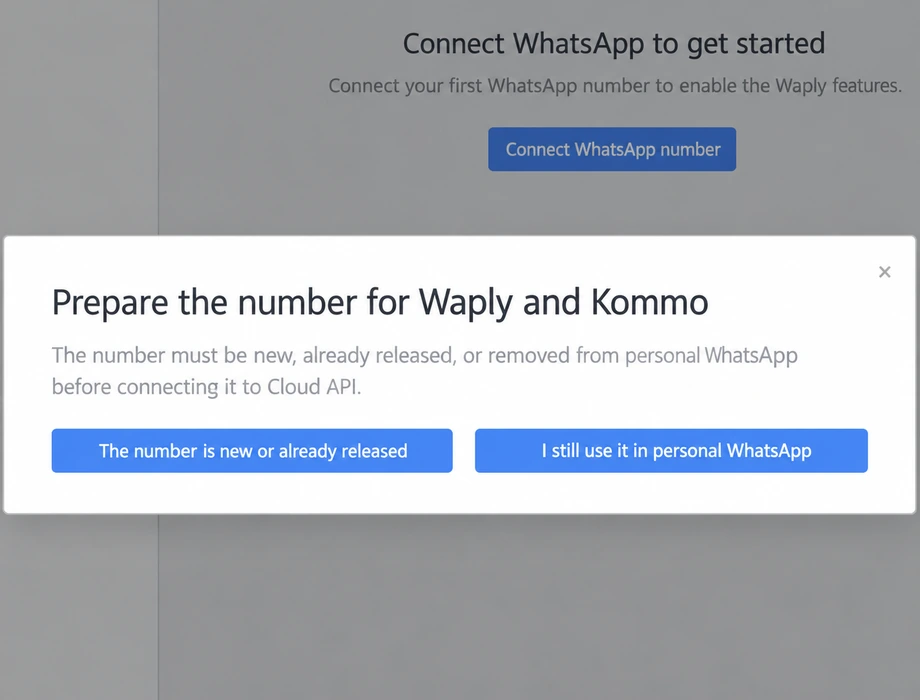
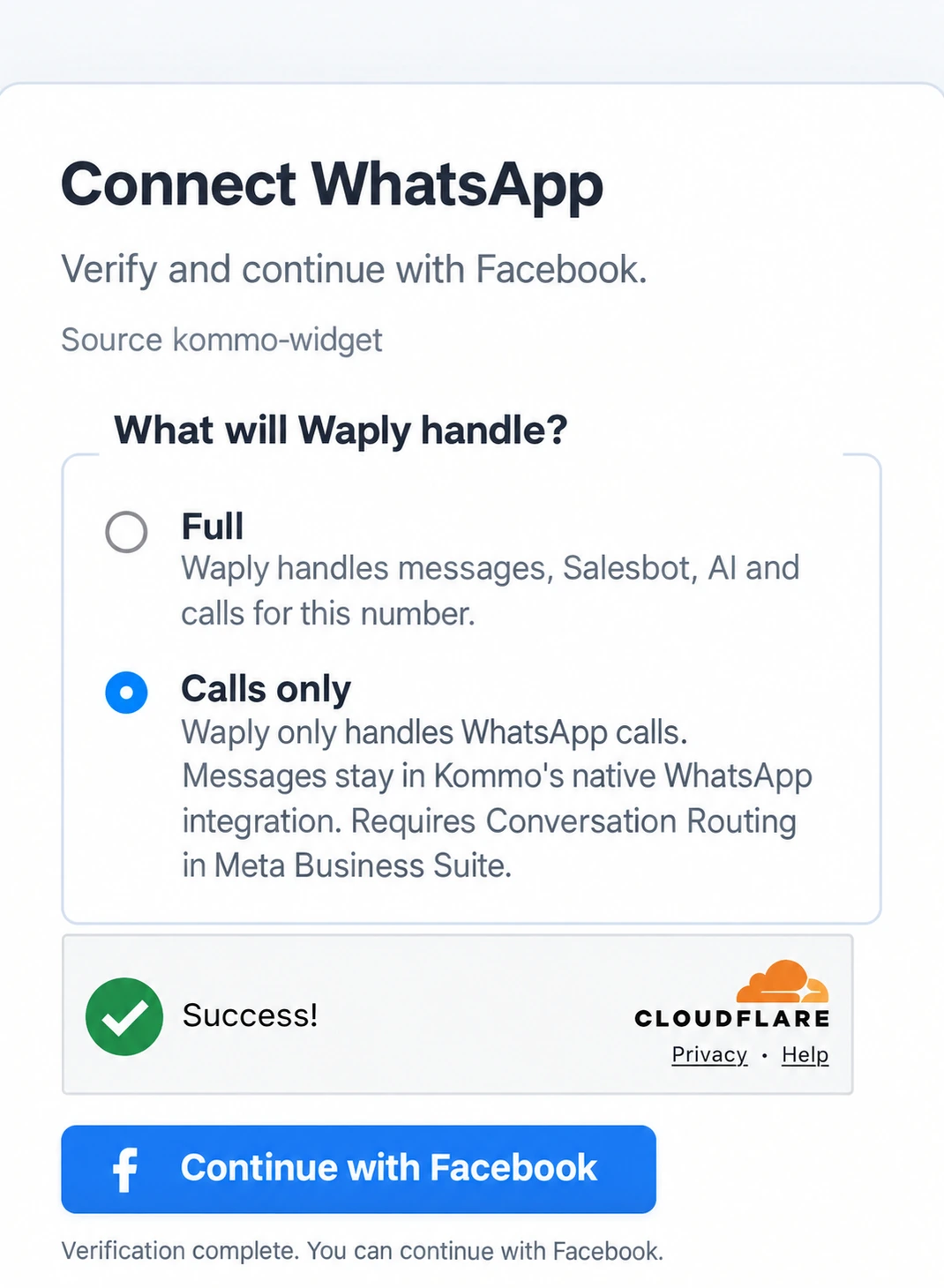
Chats keep arriving through your current integration.
Step 2: assign calls to Waply in Conversation Routing
Only the call responder can place or answer calls; if it isn't Waply, Meta rejects them (error 138038).
- In Meta Business Suite, as an admin of your company's portfolio, go to Settings → Accounts → WhatsApp accounts.
- Select the number and open the “Conversation routing” tab.
- Under “Message routing”, click “Manage”. No need to turn on smart routing.
- On “Calls with customers”, pick “Efece systems” (that's Waply).
- On the message rows, pick your integration (e.g. Kommo).
- Click “Apply” and confirm with “Update”.
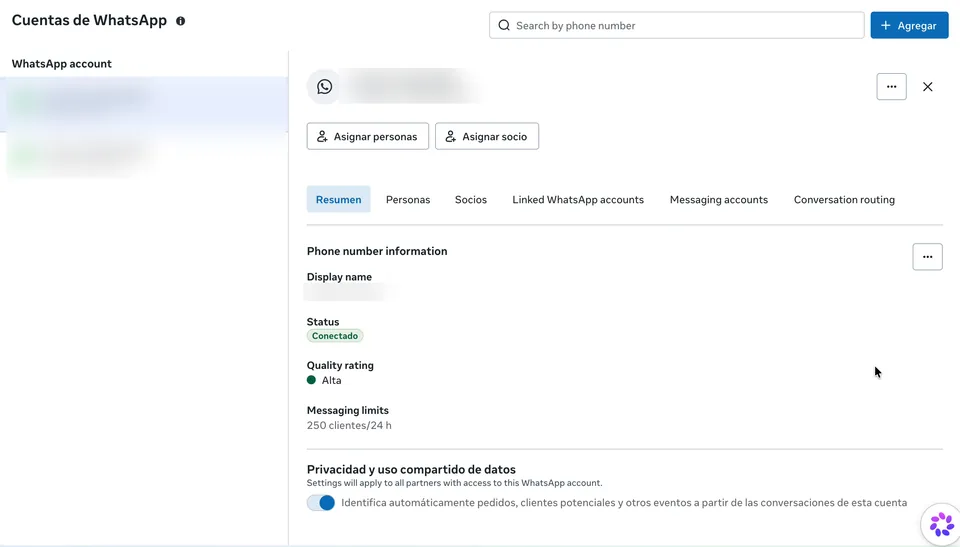
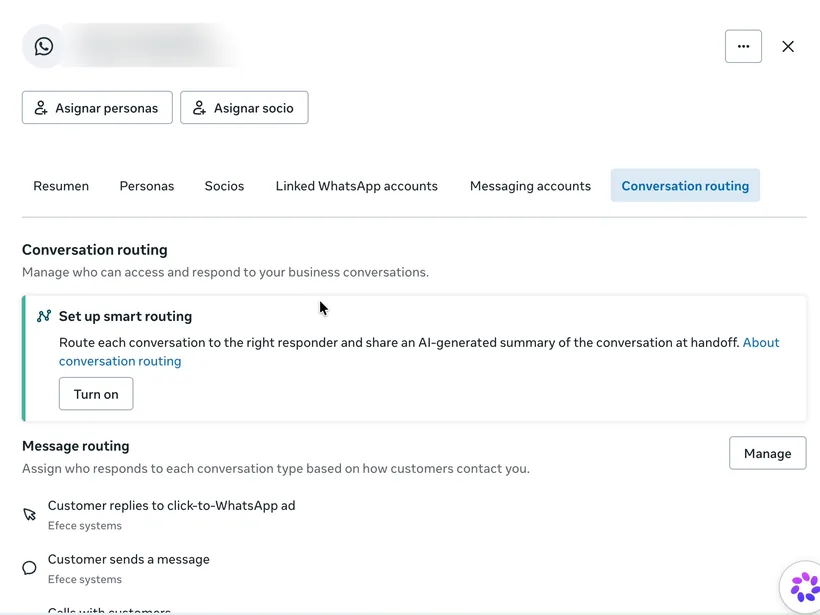
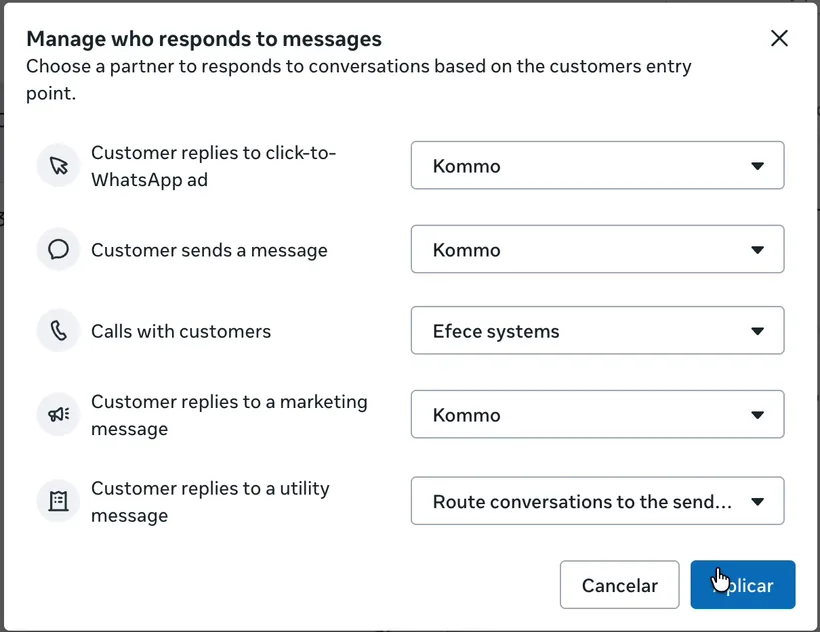
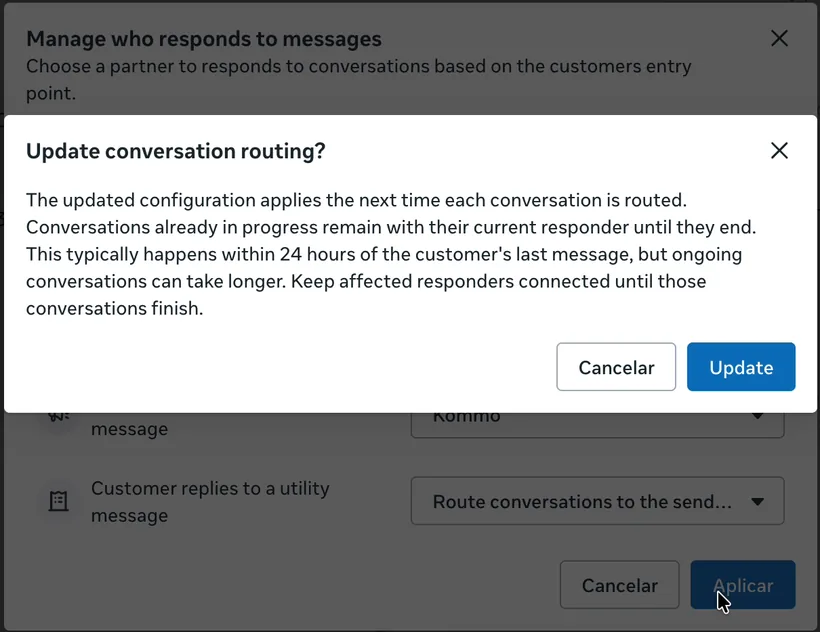
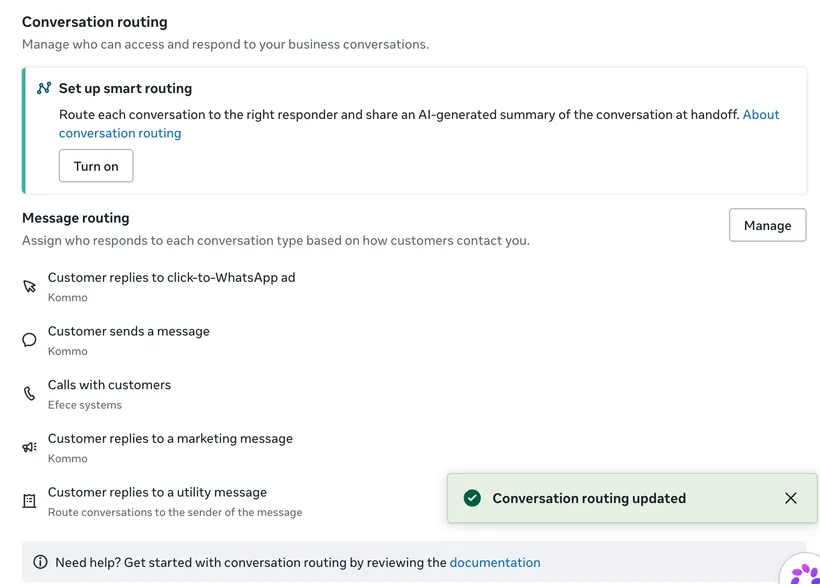
Seeing “Conversation routing needs at least two responders”?
- Finish Step 1 first: once Waply is connected the number has two responders and “Manage” appears.
- “Assign a partner” won't fix it: it only creates the partner relationship, it doesn't make Waply a responder.
If Settings → Integrations → Conversation routing looks empty, open it from WhatsApp accounts as in the screenshots.
Check this tab after connecting Waply: Meta never changes an existing setup.
What each integration does
Who does what in “Calls only” mode
| Task | Waply | Messaging integration |
|---|---|---|
| Inbound and outbound WhatsApp calls | Yes (Call primary) | No |
| Ask the customer for call permission | Yes | No |
| Call log on the Kommo lead | Yes | — |
| Receive and answer chats | No | Yes |
| Message templates and campaigns | No | Yes |
Step 3: check that it works
- In Waply → Numbers, the number shows as connected with no warning.
- Call the number from a test WhatsApp: it rings in Kommo and is logged on the lead.
- Send a test message: it reaches your messaging integration.
Common problems
- Conversation Routing warning or “Waply is not the Call primary”: redo Step 2. The warning clears on the next successful call.
- No “Calls only” option: the number is on coexistence.
- Messages don't arrive: check your integration owns the message rows.
- “Escalation partner” and “Standby visibility” aren't needed.
FAQ
Can I switch to “Full” later?
Yes, contact support and then update Conversation Routing.
Does Waply store messages?
No. Your messaging integration receives them.
Does it work on coexistence?
No. You need a dedicated Cloud API number.
Add WhatsApp calls without moving your chats
Connect the number with “Calls only”, assign calls to Waply in Meta, and keep your chats where they are.
Available for dedicated WhatsApp Cloud API numbers.